
Active Directory integration allows you to automatically synchronize employee data from your corporate directory to Signit. This ensures all employees are available as suggested participants when sending documents for signature, making it easy to fill in recipients with their correct names and emails. The integration streamlines workflow, reduces manual entry, and ensures updates in your directory are reflected in Signit’s participant selection.
Step 1: Navigate to Integrations
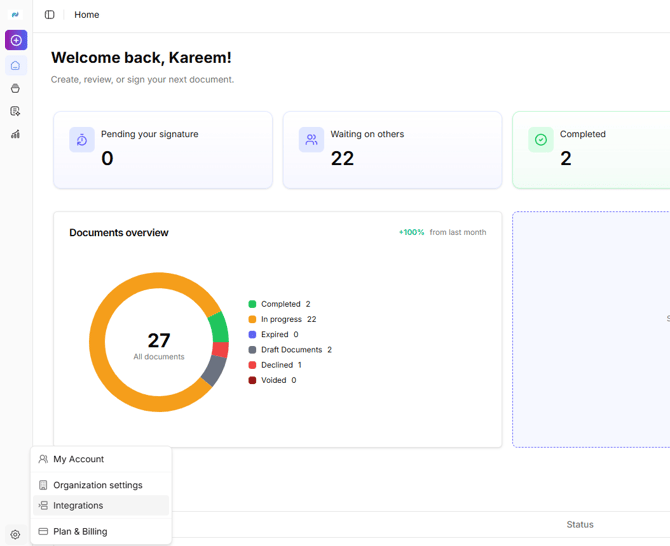
From the Signit homepage, open the menu and select "Integrations" to begin connecting external systems like Active Directory.
Step 2: Choose Active Directory
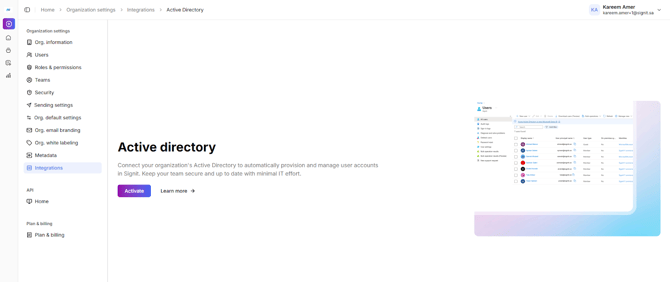
On the Organization Integrations page, select the "Active Directory" card. This will take you to the connection setup screen where you’ll input your LDAP server details.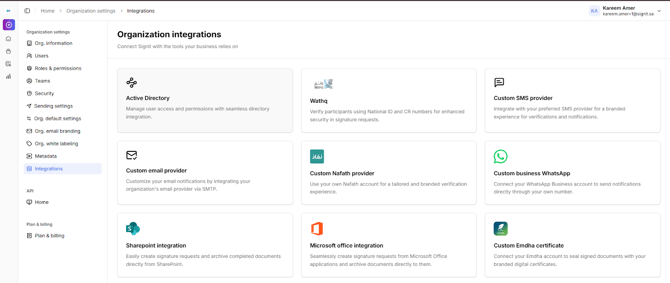
Step 3: Enter LDAP Basic Information
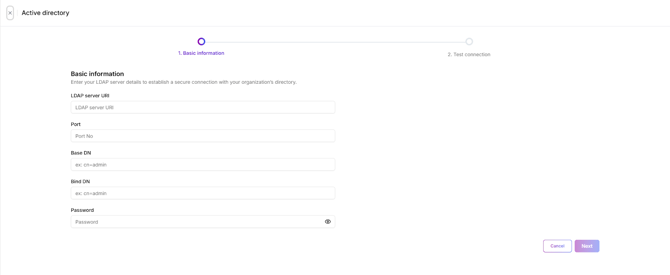
LDAP server URI:
The unique address of your organization’s directory server. This is typically formatted as ldap://yourserver.domain.com (for unencrypted LDAP) or ldaps://yourserver.domain.com (for encrypted LDAP over SSL). This tells Signit where to find your directory.
Port:
The network port used for connecting to your LDAP server. Standard LDAP uses port 389, and LDAPS uses port 636. Your organization may assign a different port; check with your IT administrator if unsure.
Base DN (Distinguished Name):
This is the starting point within your directory where user account searches will begin. It’s usually structured like dc=yourcompany,dc=com or a sub-organizational unit (OU), such as ou=Users,dc=yourcompany,dc=com.
Bind DN:
The username or service account (expressed as a distinguished name) that Signit will use to authenticate and search for users in your directory. For example, cn=admin,dc=yourcompany,dc=com. This should have read/search permissions for your users.
Password:
The password for the above Bind DN/service account. This is securely stored and used exclusively for synchronizing and reading directory information.
After entering these details, click “Next” to proceed to connection testing and credential validation.
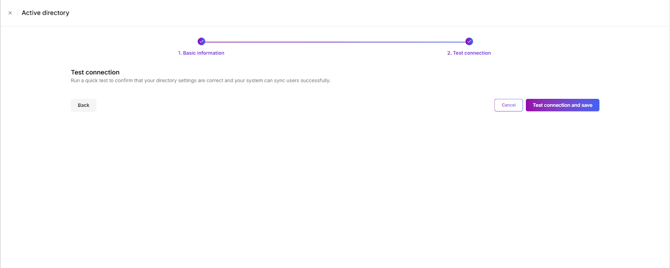
Step 4: Test Connection
Click "Test connection and save" to validate that your directory information is correct, and that Signit can communicate with your Active Directory server.
Step 5: How It Works
When Active Directory is successfully integrated, Signit will automatically pull user details, such as names and emails, from your directory. When sending a document, you’ll receive real-time participant recommendations, ensuring every employee is available for fast, accurate recipient selection.
Important notes:
- Signit Active Directory integration only works via LDAP setup. This means your Active Directory server must be accessible from the internet, or at least must be able
to connect to Signit over the internet in order to enable synchronization. - Azure/EntraID Active Directory integration is on our roadmap.
- Active Directory integration is used solely for syncing contacts to Signit. It does not provide single sign-on (SSO) functionality. For SSO setup, please navigate to the Security section under Organization settings.