
Custom Email Integration allows your organization to send all notifications and workflow emails from your own SMTP mail server, instead of the default Signit service. This gives you full control over deliverability, sender identity, and branding, improving trust with recipients.
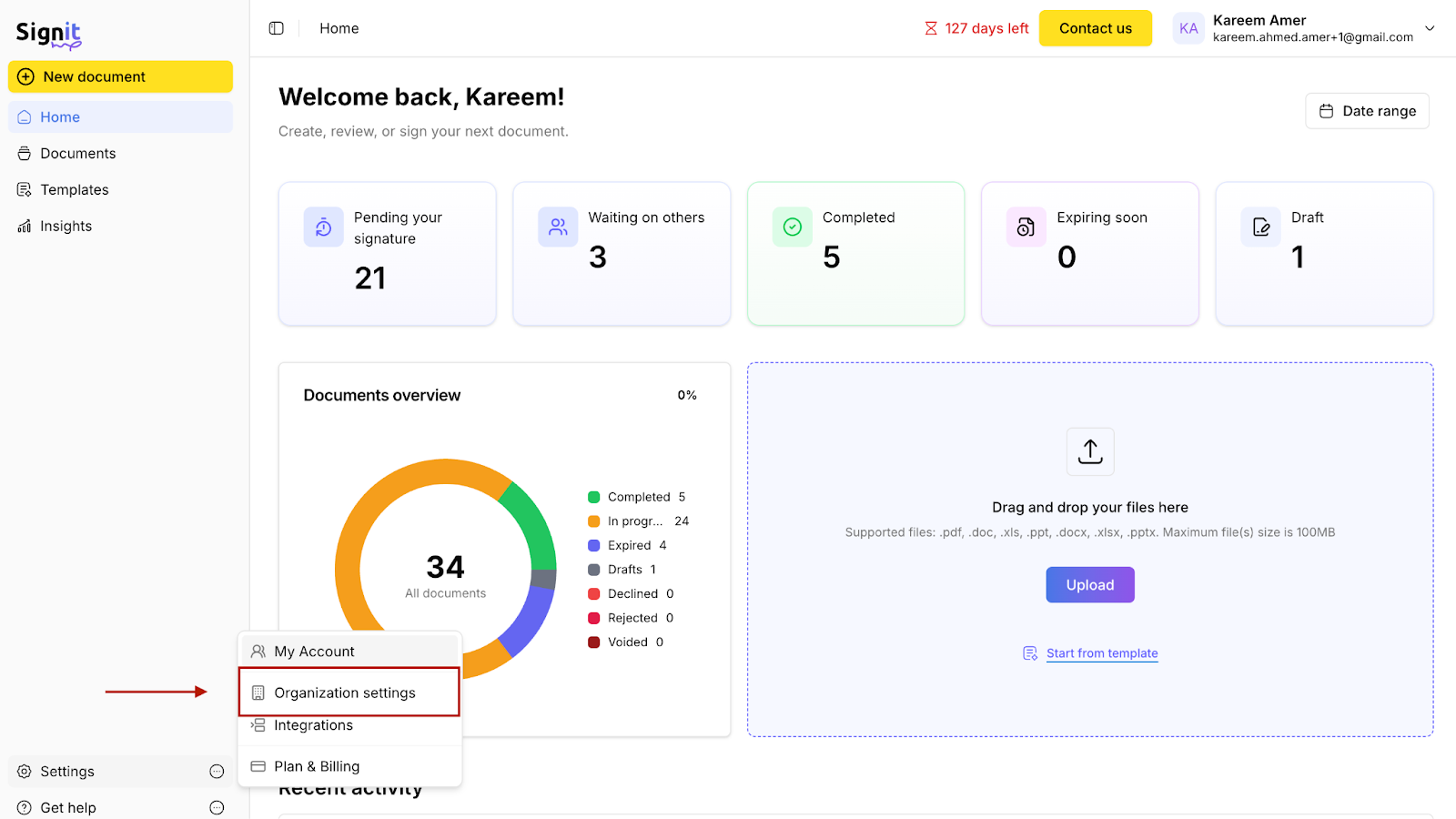
Step 1: Navigate to Integrations
From the Signit homepage, go to the side menu and select “Integrations.”
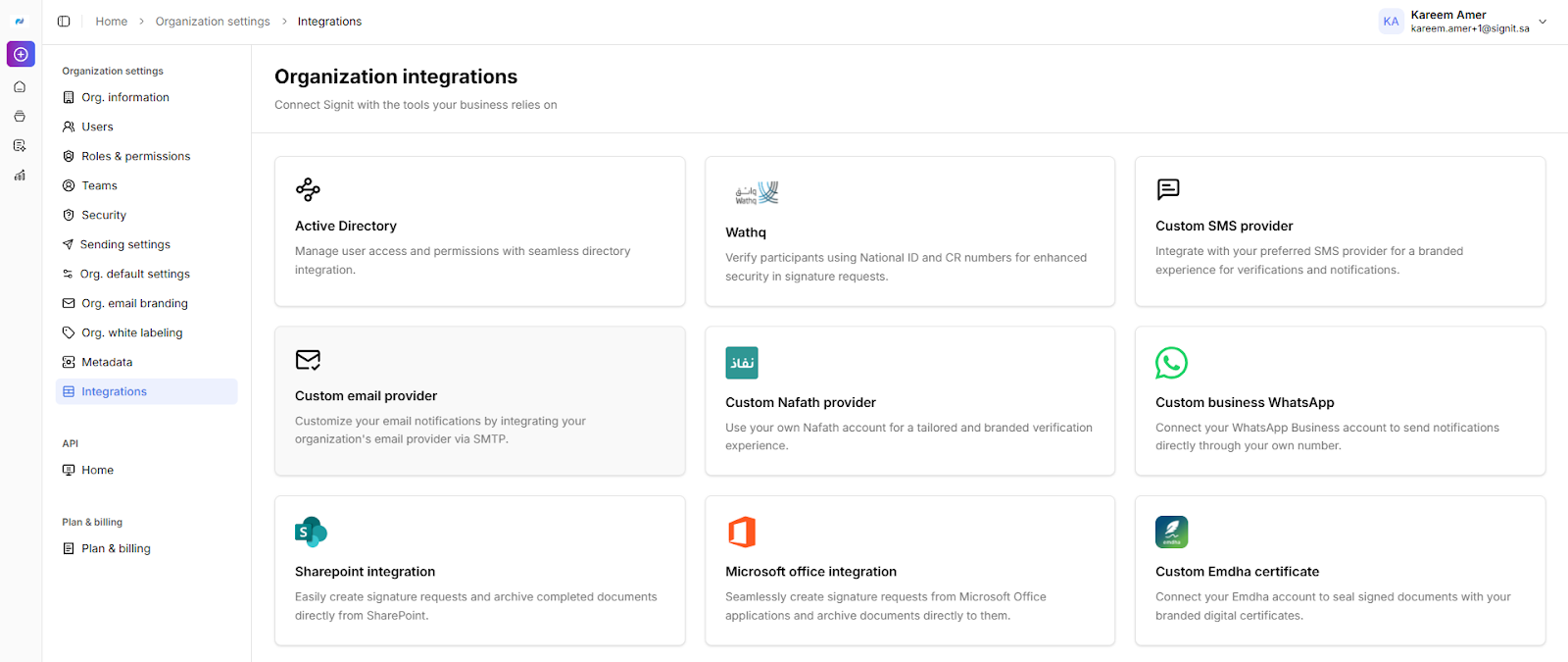
Step 2: Select Custom Email Provider
Find and select the "Custom email provider" integration card to start the setup.
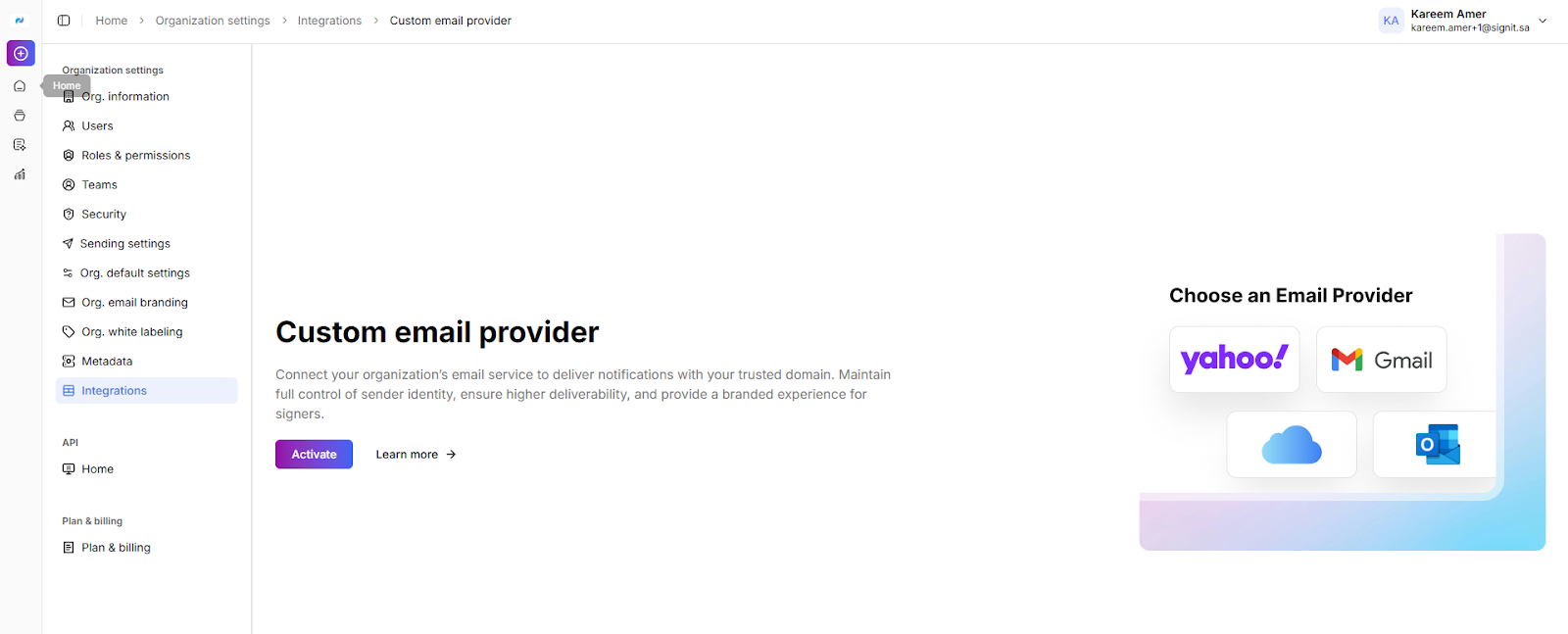
Step 3: Activate Custom Email Integration
On the Custom Email Provider introduction page, click “Activate” to begin the SMTP configuration process.
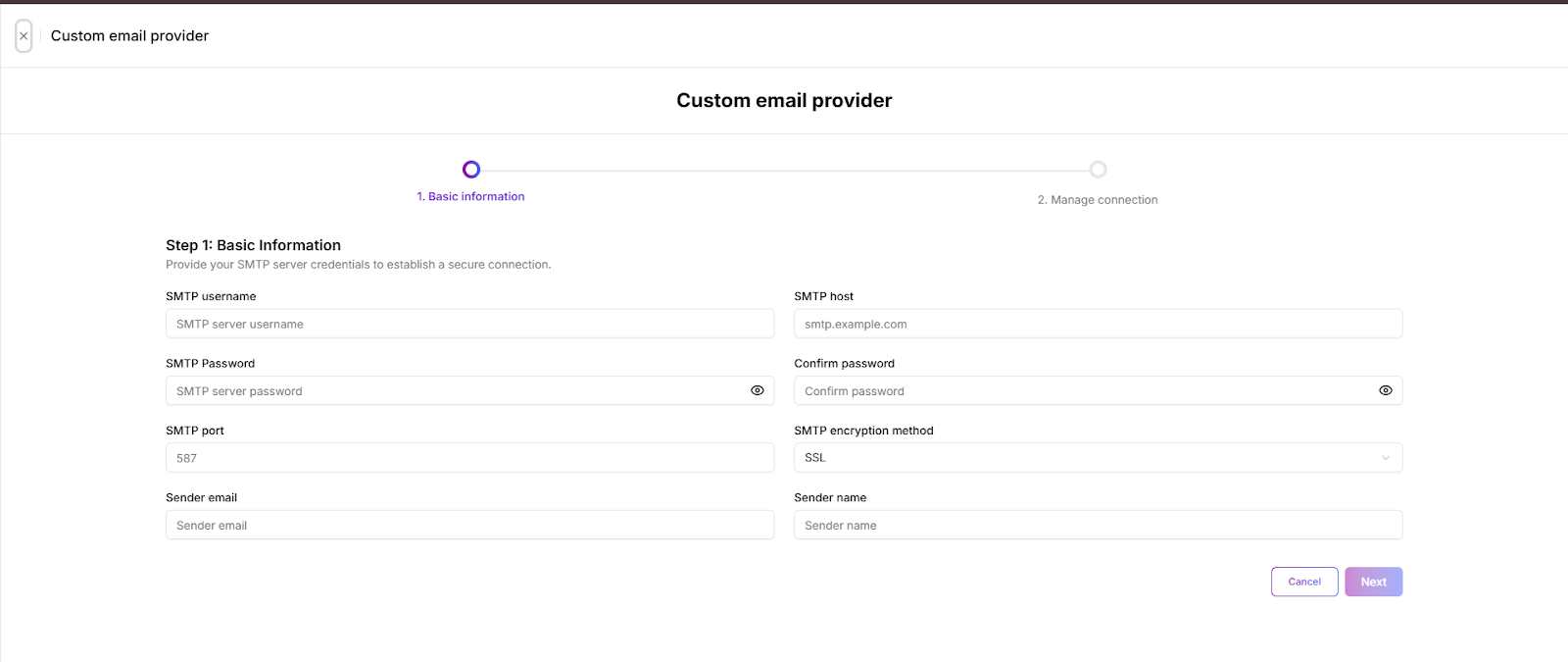
Step 4: Enter SMTP Basic Information
Fill out the required SMTP server credentials:
- SMTP username: The full email address or username authorized to send emails from your organization’s server.
- SMTP password: The password for the above SMTP account.
- SMTP port: The port number your mail server uses for sending emails. Common values are 587 (TLS), 465 (SSL), or 25 (non-secure).
- Sender email: The email address that will appear as the sender in outgoing emails.
- SMTP host: The actual mail server’s address, such as smtp.example.com or your provider’s SMTP endpoint.
- Confirm password: Re-enter your SMTP account password for confirmation.
- SMTP encryption method: Select the encryption protocol (SSL, TLS, or none) that matches your mail server’s security settings.
- Sender name: The name recipients will see (e.g., your company name or “HR Department”).
Step 5: Manage and Test Connection
In the next step, enter a test recipient email and click "Test" to verify connectivity and email delivery. Signit will send a test email to confirm everything works correctly.
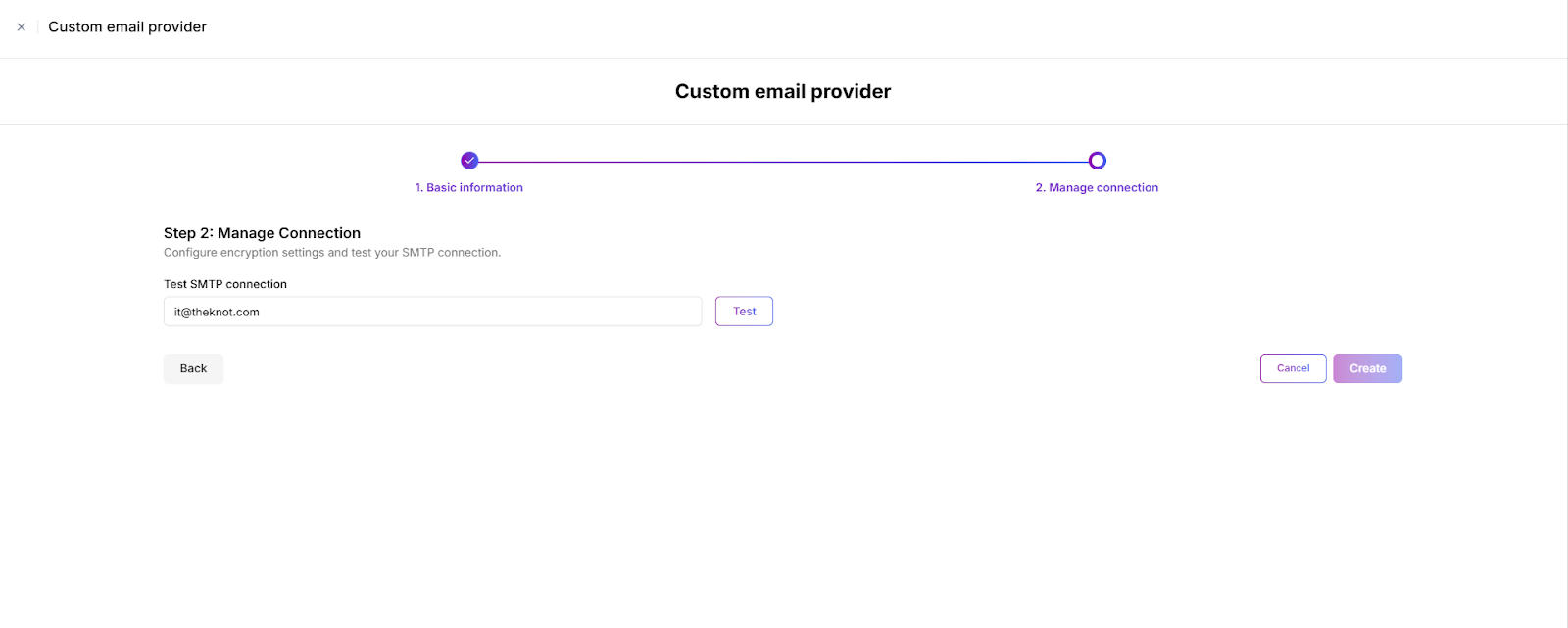
Step 6: Finalize and Apply
Once the test is successful and you receive the confirmation email, click “Create” to save and apply your custom email provider settings. Your organization’s emails sent by Signit will now be delivered through your own SMTP server.
Important Notes
- The SMTP credentials you enter must belong to an account authorized to send emails from your organization's domain. Invalid or limited-permission accounts may result in delivery failures.
- Ensure your SMTP server supports encrypted connections (SSL/TLS) for enhanced security. Using unsecured connections may expose sensitive information in transit, Signit does not support port 25 which is decrypted.
- Make sure to whitelist Signit’s outbound IP addresses on your SMTP server if there are strict firewall rules blocking external traffic. (141.147.129.79)
- Make sure there are no MFA policies, restrictions applied to the sender account.